
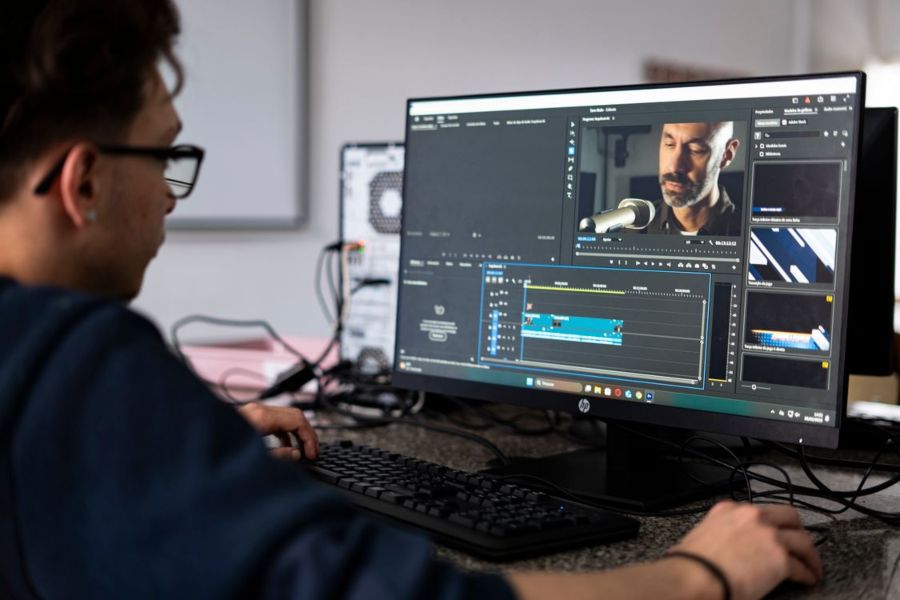
Got a folder full of clips and no clue how to turn them into something people will actually watch? Same. That’s usually where the whole thing stalls — not the filming, the editing. You’ve got the footage, you’ve got some idea in your head of what it should look like, and then you open a piece of editing software and just… stop. Too many panels, too many buttons that don’t do anything you understand, and by the time you’ve worked out how to trim a single clip, the motivation’s gone.
The video editor by Clideo is built for exactly that stuck point, and honestly, it gets you moving again pretty fast. It’s not trying to be a mini Premiere Pro or compete with the big desktop editors on feature count for the sake of it. It’s aimed at people who just want to make a decent video without treating the whole thing like a second job.
So what’s actually different about it?
There’s a real gap in the market between apps that are too basic to do anything useful and software that needs a weekend course before you can cut a single clip. You know the type — either you’re stuck dragging one photo over some royalty-free music with zero control over anything, or you’re staring at a timeline with forty tracks and no idea what half the icons even mean. Clideo doesn’t try to be everything. It just sits in that awkward middle bit nobody else bothers with properly.
Good content is not only about cutting clips together. Small creative choices like typography, visual style, and text presentation also shape how people experience a video. Platforms like Fontylish can help creators discover font ideas that make titles, captions, and visual elements feel more polished.
It runs in your browser, so no downloads, no updates nagging you at the worst possible moment, nothing clogging up your phone’s storage six months down the line. Pull in files from your device, Google Drive, Dropbox, whatever — chuck them on the timeline and go. Trim things down, throw some music underneath, add text over the top, build a split-screen if that’s your thing. Works fine on a phone screen too, which honestly still surprises people, given how fiddly most mobile editing apps end up being.
There’s also something to be said for not having to think about which version of the software you’re on, or whether an update’s going to break your project halfway through. Because it’s all browser-based, you open the same tool whether you’re on a work laptop, your own Mac at home, or an Android tablet borrowed off someone. Nothing to reinstall, nothing to relearn.
The bits that actually matter
Cutting clips together is the easy 20%. The stuff that separates a decent video from one people scroll past is usually smaller than you’d think:
- Text and captions you can actually control — font, size, colour, background. Half your audience is watching on mute, so this isn’t optional anymore. Tools like Fontava can help creators find better font styles and visual ideas for making video text more engaging.
- Split-screen and picture-in-picture, handy for reactions, before-and-afters, tutorials, that sort of thing.
- Aspect ratio presets so you’re not manually reformatting the same edit five times for five platforms.
- Per-clip speed, brightness and volume tweaks, rather than one setting jammed across the whole project. If your footage includes distracting backgrounds, using a video background remover can help isolate the subject and create cleaner, more professional-looking videos without the need for reshooting.
- Music and voiceovers, either your own, from the built-in library, or an AI voiceover if talking to a mic isn’t your idea of fun.
- Wide format support — MP4, MOV, AVI, PNG, JPG, MP3, the usual suspects and then some.
None of it assumes you’ve edited anything before. That’s sort of the whole selling point, and probably why it’s picked up such a following among creators and small teams who don’t have a dedicated editor on staff. You’re not paying someone else to do the basic cutting and captioning, and you’re not spending three evenings watching tutorials just to figure out how to export at the right resolution.
Worth mentioning too — it supports HD and 4K, and it doesn’t quietly downgrade your footage when you export unless you tell it to. That’s a small thing, but it matters more than people think. Nothing worse than spending an hour on an edit and getting a blurry, compressed mess back at the end.
Simple tends to win, annoyingly
There’s this idea floating around that better content needs fancier tools. Rarely true. The people posting consistently, week after week, are usually the ones who’ve stripped the friction out of their process — not the ones with the most complicated setup or the biggest software subscription.
Think about the creators you actually follow. Most of them aren’t running twelve-plate rigs and colour-grading every frame. They’re just showing up, editing quickly, and posting before the idea goes cold. That’s the bit that actually builds an audience over time — consistency, not polish. A slightly rough video that goes out on schedule will usually beat a perfect one that never gets finished.
The video editor by Clideo is free to start, runs entirely in the browser, and keeps your export quality as-is unless you tell it otherwise. Whether it’s a highlight reel, a product demo, a birthday video for someone, or something quick for TikTok, the process doesn’t fight you at any point. You’re not fighting render times, you’re not fighting confusing menus, and you’re not stuck waiting on a desktop app to catch up with your phone footage.
Keep it real, keep it fresh
Nobody wants an over-polished, over-edited clip that feels like an advert dressed up as a video. What works is being clear, being consistent, and giving people an actual reason to keep watching past the first three seconds. People can tell when something’s been overworked, and it tends to put them off rather than draw them in.
Creating better videos also means understanding what audiences respond to. Many creators review viewer reactions, content trends, and engagement patterns to improve future videos. Tools like Titok Viewer can help creators explore video trends and discover how different types of content perform.
The video editor by Clideo won’t write your script for you — that part’s still on you — but it clears out the technical faff so you can spend your energy where it counts: on the story itself, on the timing, on whatever it is that made you want to film this in the first place. The tool’s there to get out of your way, not to become the whole project. And honestly, that’s probably the highest compliment you can pay a piece of editing software.
If you’ve been putting off making content because the editing side felt like too much hassle, it’s worth just having a go. Upload a few clips, play around with the timeline, see how it feels. Worst case, you’ve lost ten minutes. Best case, you’ve found the tool that gets your ideas actually finished instead of sitting in a camera roll forever.
FAQs
Can I put music into my video with Clideo? Yep — upload your own track, grab something from the built-in library, add sound effects, record a voiceover yourself, or let the AI voiceover handle it if you’d rather not.
Does it save my project so I can finish it later? If you’re on premium, yes, it stays in your profile. Free accounts need to be finished in one sitting, so plan for that.
What can I actually do with text and graphics? Pretty much whatever you want with the text itself, and there’s a decent library of shapes, GIFs, stickers, emojis and stock images thrown in too.
Is premium worth it, what do you get? Bigger upload limits, more of the AI features, projects saved for longer, and no watermark on your exports.
Can I stick my own watermark on instead? On premium, yes — upload a PNG and you can move it around, resize it, adjust how see-through it is.
What file types does it work with? Most of the common ones — MP4, MOV, AVI, PNG, JPG, MP3, AAC, and a fair few others besides.
What resolution can I edit in? HD and 4K are both fine, and it won’t touch your original quality unless you specifically ask it to.
How do I mix video, photos and audio in one project? Drag them onto the timeline and arrange them in whatever order makes sense. That’s really it.